Using Voodoo Rush Software
1. Using Windows 95 Display Properties Control Panel
C. TV Features
D. Pop-up menu
Using Windows 95 Display Properties Control Panel
Note: You can move the mouse cursor to the background of screen and then click the right button of mouse. Please select properties in the pop-up menu to invoke the Display Properties Control Panel.
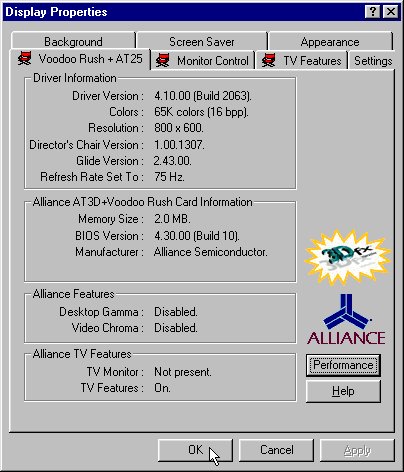
You can see the Driver Information, Card Information, Features Status in this page, and a "Performance" button for advanced setting.
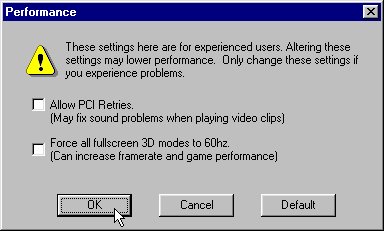
When you clicked the "Performance" button in the above page, you can see the following dialog. There are two options you can enable or disable, one is "Allow PCI Retries" which can fix sound problems when playing video clips if you encounter this problem and the other is "Force all fullscreen 3D modes to 60hz" which can increase framerate and game performance.
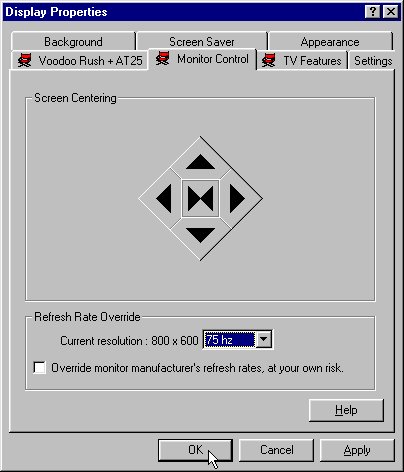
In Screen Centering group box, you can see five buttons: Shift Left button, Shift Up button, Shift Right button, Shift Down button and Restore button in the center. You can use the first four buttons to shift the screen and adjust the screen to the fitting position. If you want to restore the original screen position, just press the Restore button.
In Refresh Rate Override group box, you can set the refresh rate that you want.
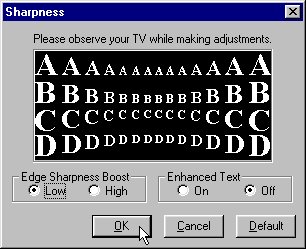
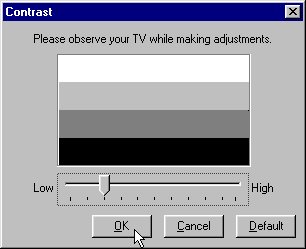
You can use the functions provided by this page to adjust the mode and quality of TV Out.
After drivers installation completed, you can see the following pop-up menu in the right side of Taskbar if you click the little icon.
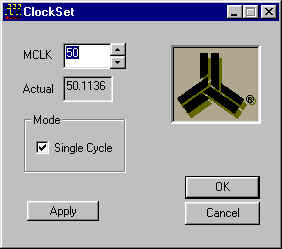
You can use the functions provided by this page to adjust Alliance ProMotion AT25 performance. The default MCLK value in BIOS is 50, you can increase this value to enhance the 2D performance.